728x90
오류수정
NavDetail을 클릭하면 Nav 배경이 풀리는것을 수정했습니다.
Nav.js
import React , {useState} from "react";
import styled ,{css} from "styled-components";

/*nav바 밑에 요소 불러오기 */
import NavDetail from "./NavDetail";


export default function Nav({pcategory,clickPcategory}){

    const ContainerSelected = {
        background : '#ffffff',
        border : '0px',
        borderRadius : '24px',
        boxShadow: '-10px -10px 15px rgba(255,255,255,0.5), 10px 10px 15px rgba(70,70,70,0.12)'
    }

    return(
        <Positioner>
            <WhiteBackground>
                <NavContents>
                    <Spacer />
                    <Container
                        onClick={()=>clickPcategory('best')}
                        style={pcategory.includes('best') ?
                        {background : ContainerSelected.background , borderRadius : ContainerSelected.borderRadius , boxShadow : ContainerSelected.boxShadow , border : ContainerSelected.border} : {}}
                        >
                        <P>추천상품</P>
                    </Container>

                    <Container
                        style={pcategory.includes('dog') ?
                        {background : ContainerSelected.background , borderRadius : ContainerSelected.borderRadius , boxShadow : ContainerSelected.boxShadow , border : ContainerSelected.border} : {}}
                        onClick={()=>clickPcategory('dog')}>
                        <P>강아지</P>
                    </Container>

                    <Container
                        style={pcategory.includes('cat') ?
                        {background : ContainerSelected.background , borderRadius : ContainerSelected.borderRadius , boxShadow : ContainerSelected.boxShadow , border : ContainerSelected.border} : {}}
                        onClick={()=>clickPcategory('cat')}>
                        <P>고양이</P>
                    </Container>

                    <Container
                        style={pcategory.includes('고라니') ?
                        {background : ContainerSelected.background , borderRadius : ContainerSelected.borderRadius , boxShadow : ContainerSelected.boxShadow , border : ContainerSelected.border} : {}}
                        onClick={()=>clickPcategory('고라니')}>
                        <P>고라니</P>
                    </Container>
                </NavContents>

                {pcategory ? <NavDetail pcategory={pcategory} clickPcategory={clickPcategory} /> : <> </>}
            </WhiteBackground>
        </Positioner>

    )
}

const Positioner = styled.div`
    display: flex;
    flex-direction: column;
    position: fixed;
    top: 100px;
    left : calc(50vw - 600px);
    width: 1200px;
    height: 0px;
    z-index:99;

`;


const WhiteBackground = styled.div`
    width: 100%;
    height: 50px;

    flex-direction: row;
    align-items: center;


`
// Nav 콘텐츠
const NavContents = styled.div`
    width: 1200px;
    height: 30px;
    display : inline-grid;
    flex-direction: row;
    align-items: right;

    grid-template-columns: 220px 150px 150px 150px 150px;

`

const Container = styled.button`

    width : 120px;
    height: 45px;

    background-color: #e2e2e2;

    border: 0px;
    font-size : 1rem;
    text-align: center;


    &:hover{
        background-color: #f1e87c;
        border-radius : 24px;
    }

`

const P = styled.p`
font-family : 'tway';

`

const Spacer = styled.div`

`
Home.js
import React , {useState} from 'react';

/* Header import */
import Header from '../components/Header/Header';

/* Top import */
import Top from '../components/Top/Top';

/* Nav import */
import Nav from '../components/Nav/Nav';

/* Item import */
import Item from '../components/Item/Item';

function Home(){

    const [pcategory , setPcategory] = useState('animal')

    const clickPcategory = (pcategory) => {
        setPcategory(pcategory)
    }

    return(
    <>
        <Top />
        <Header />
        <Nav pcategory={pcategory} clickPcategory={clickPcategory} />
        <Item pcategory={pcategory} />

    </>
    )
}

export default Home;
무슨 이윤진 모르겠지만 초기값을 null로 설정해두면 includes를 사용할 수 없어서 초깃값을 변경했습니다.
컴포넌트 배치 변경
기존에 살짝 왼쪽(?) 으로 밀리는 경향이 있었는데 알아보니 padding값과 border 값이 div에 들어가 있어서 조금씩 밀리는 현상이 있어서 수정했습니다.
*.js (Positioner 태그가 있는 컴포넌트)
const Positioner = styled.div`
    display: flex;
    flex-direction: column;
    position: fixed;
    top: 35px;
    left : calc(50vw - 600px);
    width: 1200px;

    /*여백지우기*/
    padding : 0px;
    border: 0px;

    `
Item.js
import React from "react";
import styled from "styled-components";

/*상품 불러오기*/
import product from '../../JSON/product.json'

function ItemList({item,pcategory}){

    return(
        <>
            {item.pcategory.includes(pcategory)
            ?
            <Frame>
            <Img src='' alt='x' />
            <Name>
                {item.pname}
            </Name>

            <Price>
                {item.pprice}
            </Price>

            </Frame>
            :
            <>
            </>
            }
        </>
    )
}

export default function Item({pcategory}){

    return(
        <Positioner>
            {product.product.map((item)=>
            <ItemList item={item} id={item.id} pcategory={pcategory} />)}
        </Positioner>
    )
}

const Positioner = styled.div`
    display: inline-block;
    flex-direction: column;
    position: absolute;
    top: 220px;

    left : calc(50vw - 400px );
    width: calc(100vw - (50vw - 400px) * 2 );

    @media (min-width : 1200px){
        left : calc(50vw - 600px );
        width: calc(100vw - (50vw - 600px) * 2 );
    }

    height: fit-content;
    z-index:99;

    padding : 0px;
    padding-bottom : 5rem;
    border: 0px;

    background-color: #FFFFFF;

`;

const Frame = styled.div`
display: inline-block;
/*부모 요소에 따라 크기 변경 => %*/
width: 30%;
height: 300px;

margin-left : 2.5%;
margin-top : 2.5%;

@media (min-width : 1200px){
        width: 18%;

        /*광기*/
        margin-left : 1.666666666666667%;
    }

border-radius: 10px;
background: #fffaf2;
box-shadow: 1px 1px 2px #bebebe, -1px -1px 2px #ffffff;

`

const Img = styled.img`

width: 90%;
height: 65%;
margin: 5%;

display: block;

`

const Name = styled.p`
padding-left : 5px;
font-family : 'tway';
`

const Price = styled.p`
padding-left : 5px;
font-family : 'tway';

`
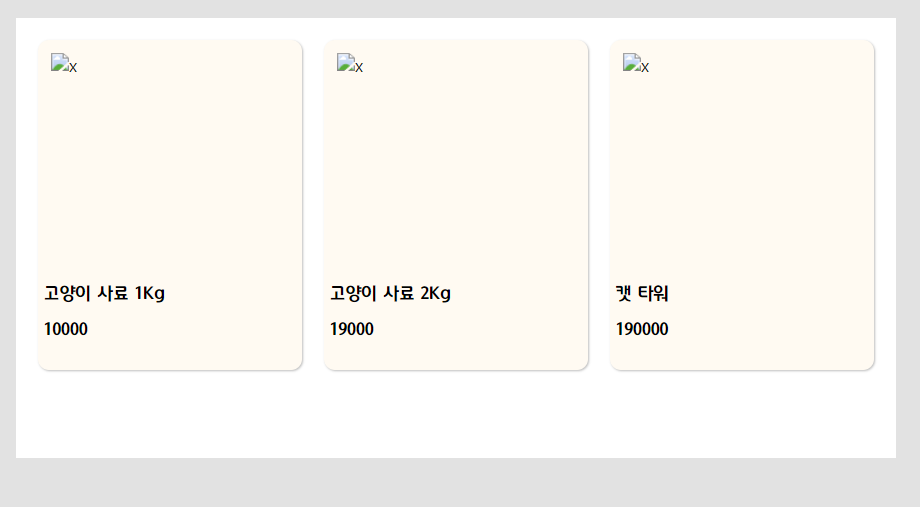
우선 1200px 이하일때는 상품을 3개만 보여주도록 하고 이상일땐 5개 씩 보여주도록 만들었습니다.
Nav에 있는 카테고리를 클릭했을때 알맞은 상품이 나오도록 만들었습니다.
사진이 없어 완성은 아니지만 어느정도 틀을 잡은거 같아 만족스럽습니다. 또 레이아웃에 대해서 많이 공부하게 된 계기가 되어서 좋았습니다.
Git
https://github.com/yundevingV/furry
GitHub - yundevingV/furry
Contribute to yundevingV/furry development by creating an account on GitHub.
github.com
728x90
'React > Furry' 카테고리의 다른 글
| 10-1. ItemDetail 페이지 만들기 (0) | 2023.02.15 |
|---|---|
| 9. 반응형 Header 만들기 (0) | 2023.02.10 |
| 7. Props 흐름 수정하기 (0) | 2023.02.08 |
| 6. NavDetail 제작하기 (0) | 2023.02.08 |
| 5. Nav 제작하기 (0) | 2023.02.02 |

